

Free LightBurn Files – SVG & DXF Laser Cut Designs
Download free SVG and DXF files ready for LightBurn laser software. All designs import directly into LightBurn — just load, set speed and power, and cut. No registration required. Free for commercial use.
Compatible machines (with LightBurn)
Machines these files work with
Some links on this page are affiliate links. If you buy through them, we may earn a commission at no extra cost to you. It does not influence which machines we list — the files on this site stay free either way.
- xToolView
Diode and infrared machines aimed at hobbyists and small shops.
- OMTechView
CO2 laser cutters with larger beds, for thicker material and production work.
- AtomstackView
Entry-level diode engravers at the low end of the price range.
- Creality FalconView
Diode engravers from a established 3D-printing manufacturer.

Evil Jester Skull Hat Charm Pendant Silhouette
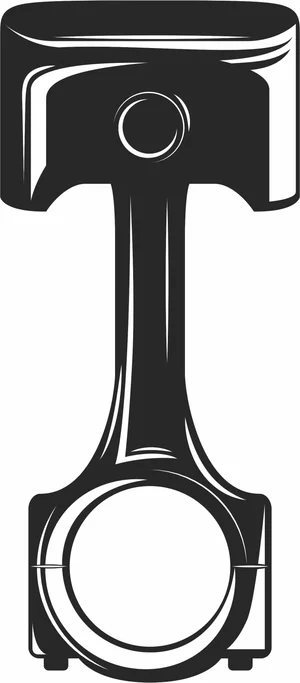
Engine Piston and Connecting Rod Silhouette

Downhill Alpine Skier Speed Racing Slope Silhouette

Crossed Waving Checkered Flags Finish Line Graphics
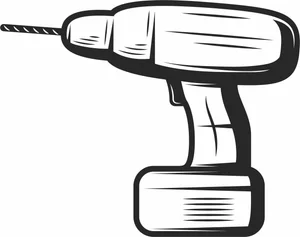
Cordless Power Drill Hardware Tool Illustration
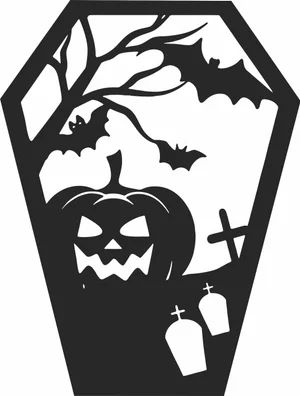
Coffin Shaped Halloween Scene Pumpkin Bats Graveyard

Circular Tribal Mandala Vector Design
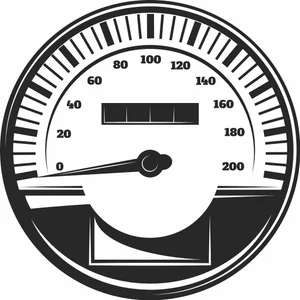
Circular Speedometer Gauge Mileage Odometer Vector
Circular Five Point Tribal Star Emblem
Chinese Dragon Asian Serpent Art

Car Wheel Burnout Smoke Drift Graphic

Burning Motors Crossed Wrench and Piston Round Emblem

Bikers Tournament Horned Helmet Motorcycle Circular Emblem
Arched Halloween Window Spooky Pumpkin Bats Graveyard
Angry Skull Laser Cut File Engraving Vector Design

Winter Beanie Hat And Snowflake Pattern Scarf Set

Grizzly Bear Side Profile Wildlife Graphic
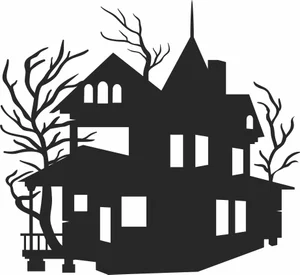
Victorian Haunted Mansion Spooky Bare Trees
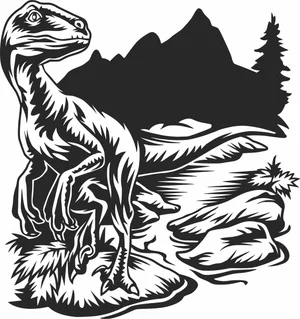
Velociraptor Dinosaur Wildlife Scene
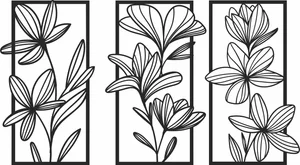
Floral Wall Art Three Panels Flowers
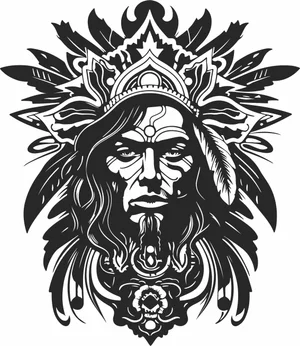
Tribal Chief Warrior Portrait
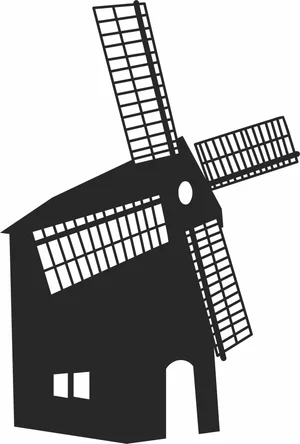
Traditional European Dutch Windmill Millhouse

Traditional Dutch Windmill Farm Building Landmark Silhouette
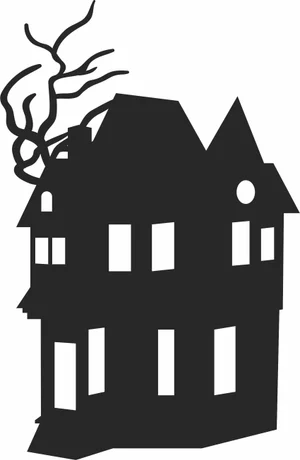
Three Story Haunted Mansion Creepy Bare Tree Branches Silhouette
More free laser files
LightBurn File FAQ
What formats does LightBurn support?
SVG, DXF, AI, PDF, PNG, JPG, BMP. SVG and DXF are best for vector cutting. All FreeLaserFile designs are LightBurn-ready.
How do I import SVG into LightBurn?
File > Import or drag and drop SVG/DXF. Set cut vs. engrave layers via color palette. No conversion needed.
Which machines work with LightBurn?
xTool, Ortur, Sculpfun, OMTech, Atomstack, LONGER, K40 (with upgrade), and all GRBL/Ruida DSP machines. Not compatible with Glowforge.
Are the files free for commercial use?
Yes. Free for personal and commercial use. No attribution required.