

Free LightBurn Files – SVG & DXF Laser Cut Designs
Download free SVG and DXF files ready for LightBurn laser software. All designs import directly into LightBurn — just load, set speed and power, and cut. No registration required. Free for commercial use.
Compatible machines (with LightBurn)
Machines these files work with
Some links on this page are affiliate links. If you buy through them, we may earn a commission at no extra cost to you. It does not influence which machines we list — the files on this site stay free either way.
- xToolView
Diode and infrared machines aimed at hobbyists and small shops.
- OMTechView
CO2 laser cutters with larger beds, for thicker material and production work.
- AtomstackView
Entry-level diode engravers at the low end of the price range.
- Creality FalconView
Diode engravers from a established 3D-printing manufacturer.
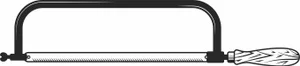
Hacksaw Tool Design
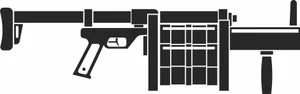
Grenade Launcher Design
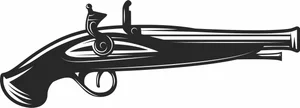
Flintlock Pistol Design
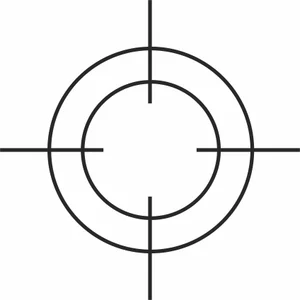
Crosshair Target Design
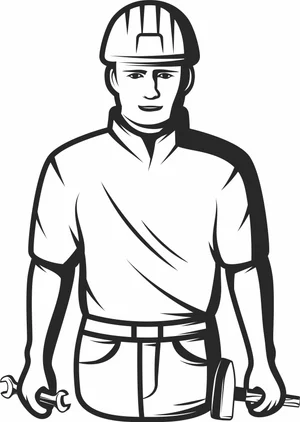
Construction Worker Builder Design
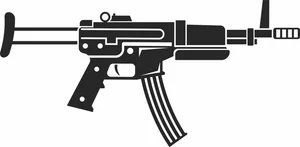
Compact Assault Rifle Design
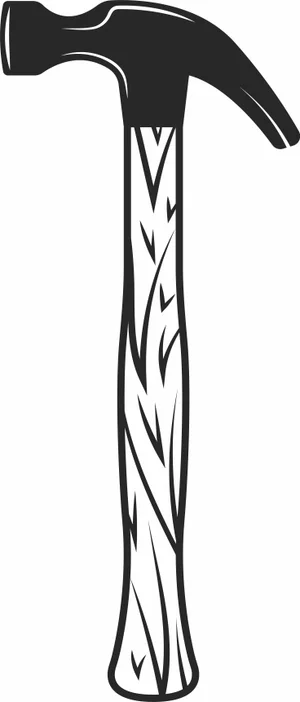
Claw Hammer Tool Design
Burning Crazy Heart Tournament Spark Plugs Design
Bullpup Assault Rifle Design

Bikers Gear Leather Jacket Sign Design

Bike Parts Motorcycle Sign Design
Angle Grinder Power Tool Design
Adrenaline Race Speedometer Sign Design
Winged Wyvern Dragon Serpent Artwork

Vintage Open Wheel Retro Race Car Silhouette
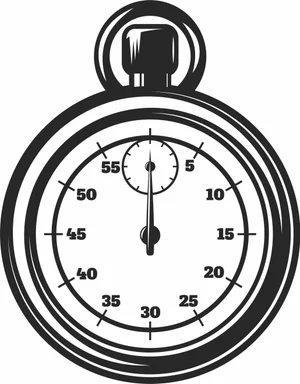
Vintage Analog Stopwatch Sports Timer Vector

Three Spoke Racing Steering Wheel Center Stripe Vector
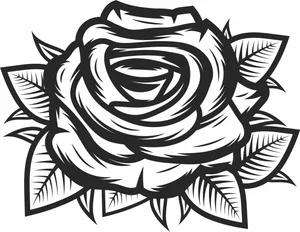
Tattoo Rose Laser Cut Design Vector
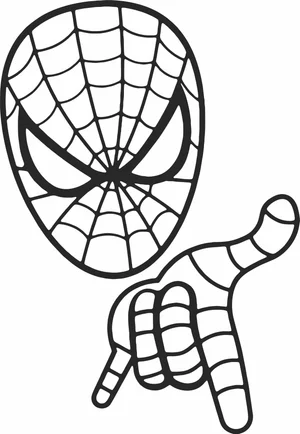
Superhero Web Shooter Mask Hand Silhouette Art

Street Devil Motorcycle Chopper Circular Badge Emblem
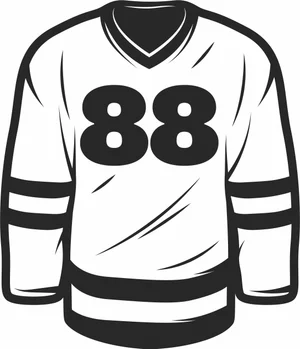
Sports Hockey Jersey Number 88 Uniform Silhouette
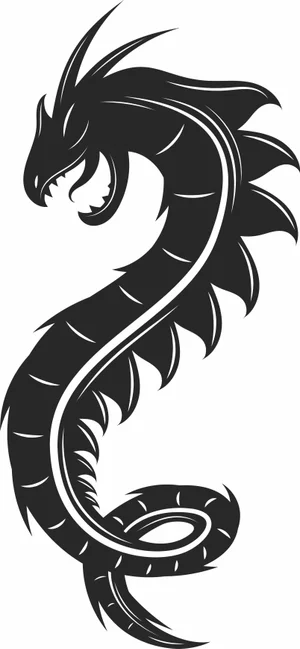
Spiked Sea Serpent Mythical Dragon Silhouette

Speed Racers Club Motocross Helmet Circular Star Emblem
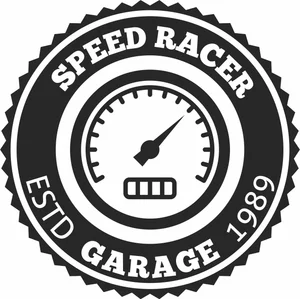
Speed Racer Garage Speedometer Round Retro Jagged Badge
More free laser files
LightBurn File FAQ
What formats does LightBurn support?
SVG, DXF, AI, PDF, PNG, JPG, BMP. SVG and DXF are best for vector cutting. All FreeLaserFile designs are LightBurn-ready.
How do I import SVG into LightBurn?
File > Import or drag and drop SVG/DXF. Set cut vs. engrave layers via color palette. No conversion needed.
Which machines work with LightBurn?
xTool, Ortur, Sculpfun, OMTech, Atomstack, LONGER, K40 (with upgrade), and all GRBL/Ruida DSP machines. Not compatible with Glowforge.
Are the files free for commercial use?
Yes. Free for personal and commercial use. No attribution required.