

Free LightBurn Files – SVG & DXF Laser Cut Designs
Download free SVG and DXF files ready for LightBurn laser software. All designs import directly into LightBurn — just load, set speed and power, and cut. No registration required. Free for commercial use.
Compatible machines (with LightBurn)
Machines these files work with
Some links on this page are affiliate links. If you buy through them, we may earn a commission at no extra cost to you. It does not influence which machines we list — the files on this site stay free either way.
- xToolView
Diode and infrared machines aimed at hobbyists and small shops.
- OMTechView
CO2 laser cutters with larger beds, for thicker material and production work.
- AtomstackView
Entry-level diode engravers at the low end of the price range.
- Creality FalconView
Diode engravers from a established 3D-printing manufacturer.
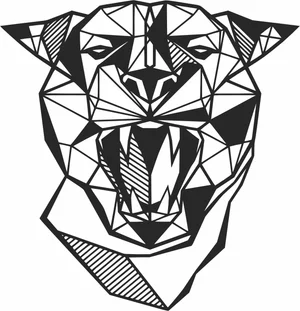
Geometric Roaring Panther Panthera Head Polygonal Line Art
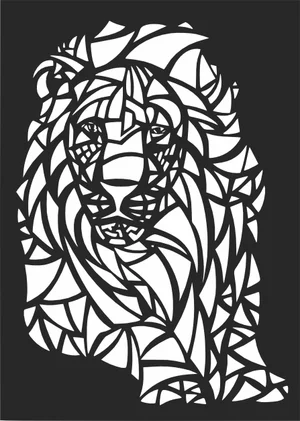
Geometric Abstract Stained Glass Styled Lion Head Mosaic Art
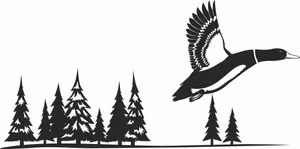
Flying Mallard Duck Pine Forest Horizon Wilderness Scene
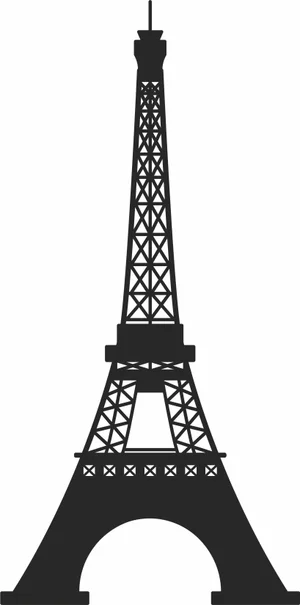
Eiffel Tower Paris France Global Landmark Silhouette
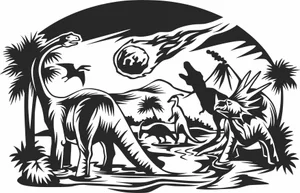
Dinosaurs Extinction Meteor Strike Volcano Landscape Scene

Decorative Ribbon Bow Tied Knot Holiday Graphic

Decorated Christmas Tree Star Topper Baubles Silhouette

Dad Text With Automotive Car Tires And Rims
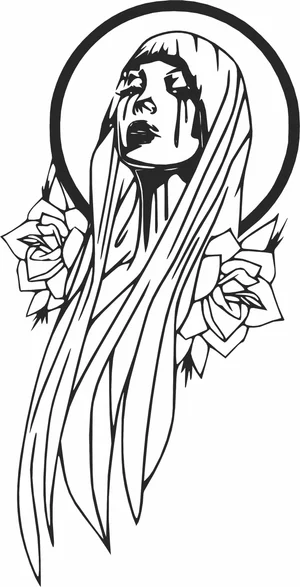
Crying Virgin Mary Crying Tears With Rose Flowers Halo Profile
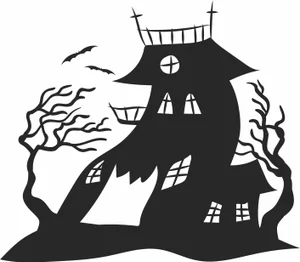
Crooked Haunted House Spooky Trees Bats Landscape Silhouette
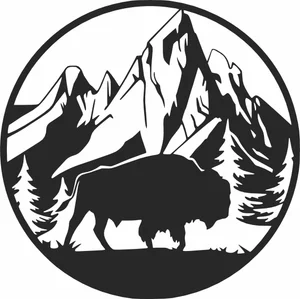
Circular Wild Bison Mountain Forest Nature Scene

Circular Gemini Zodiac Sign Twins Female Profiles Emblem
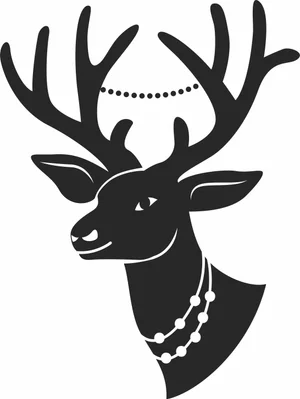
Christmas Deer Head Antlers With Pearl Beads Necklaces
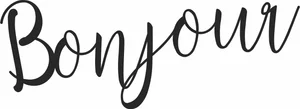
Bonjour Script Cursive Typography French Greeting Word
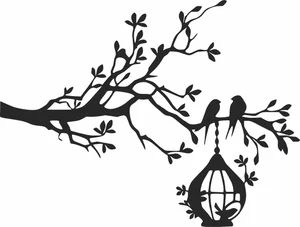
Birds Sitting On Tree Branch With Hanging Birdcage Silhouette
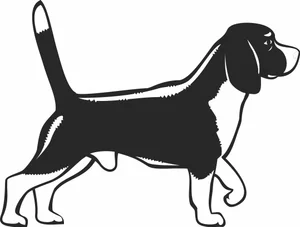
Beagle Dog Standing Side Profile Hound Breed Silhouette
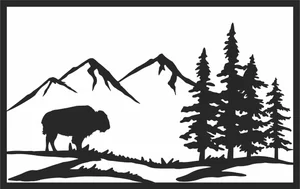
American Bison Buffalo Mountain Pine Forest Panel
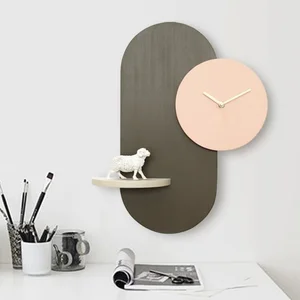
Wall Clock with Display Shelf Design
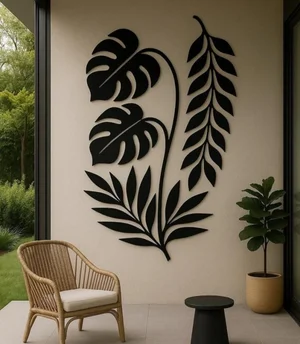
Tropical Monstera and Palm Leaf Wall Art Design
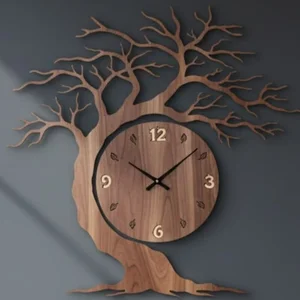
Tree of Life Silhouette Wall Clock

Time For Coffee LED Backlit Wall Clock

Swan Silhouette Vinyl Record Wall Clock
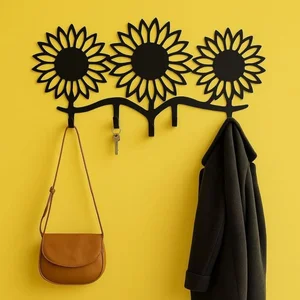
Sunflower Silhouette Key and Coat Wall Rack
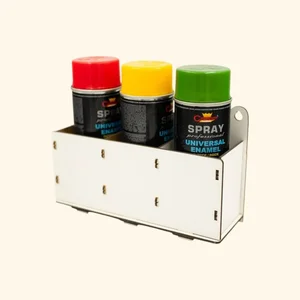
Spray Paint Bottle Storage Rack
More free laser files
LightBurn File FAQ
What formats does LightBurn support?
SVG, DXF, AI, PDF, PNG, JPG, BMP. SVG and DXF are best for vector cutting. All FreeLaserFile designs are LightBurn-ready.
How do I import SVG into LightBurn?
File > Import or drag and drop SVG/DXF. Set cut vs. engrave layers via color palette. No conversion needed.
Which machines work with LightBurn?
xTool, Ortur, Sculpfun, OMTech, Atomstack, LONGER, K40 (with upgrade), and all GRBL/Ruida DSP machines. Not compatible with Glowforge.
Are the files free for commercial use?
Yes. Free for personal and commercial use. No attribution required.