

Free LightBurn Files – SVG & DXF Laser Cut Designs
Download free SVG and DXF files ready for LightBurn laser software. All designs import directly into LightBurn — just load, set speed and power, and cut. No registration required. Free for commercial use.
Compatible machines (with LightBurn)
Machines these files work with
Some links on this page are affiliate links. If you buy through them, we may earn a commission at no extra cost to you. It does not influence which machines we list — the files on this site stay free either way.
- xToolView
Diode and infrared machines aimed at hobbyists and small shops.
- OMTechView
CO2 laser cutters with larger beds, for thicker material and production work.
- AtomstackView
Entry-level diode engravers at the low end of the price range.
- Creality FalconView
Diode engravers from a established 3D-printing manufacturer.
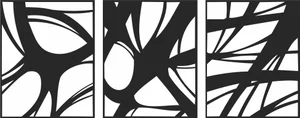
Three Panel Triptych Abstract Overlapping Curved Lines Wall Art
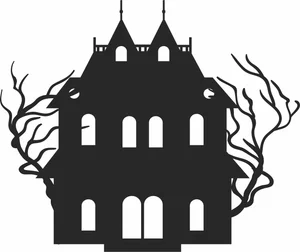
Symmetrical Haunted Mansion Gothic Estate Spooky Bare Trees Silhouette
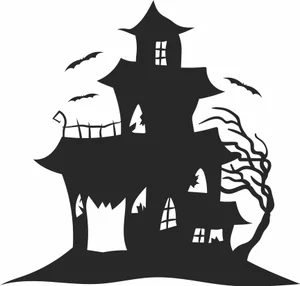
Spooky Haunted Mansion Castle Bats Gnarled Tree Silhouette
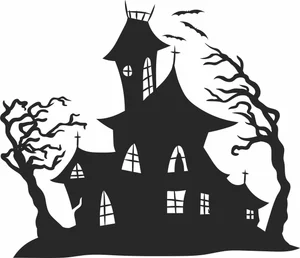
Spooky Haunted House Witch Castle Bats Windswept Trees Silhouette
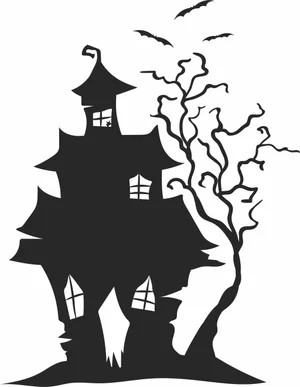
Spooky Haunted House Flying Bats Gnarled Tree Silhouette
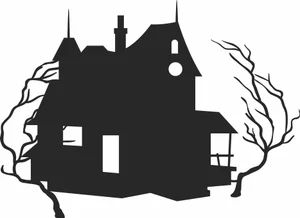
Spooky Haunted House Creepy Bare Trees Silhouette
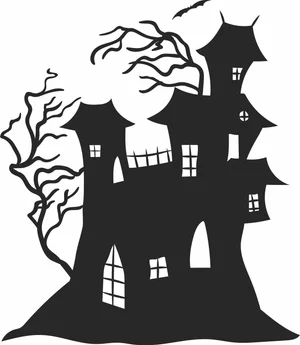
Spooky Haunted Castle Mansion Creepy Trees Bat Silhouette
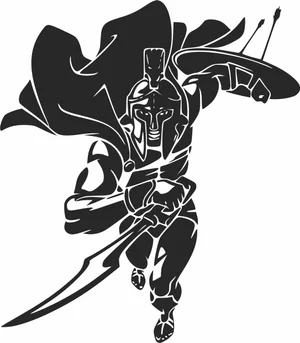
Spartan Warrior Charging With Sword Shield And Waving Cape

Soccer Ball Crashing Through Cracked Wall Graphic
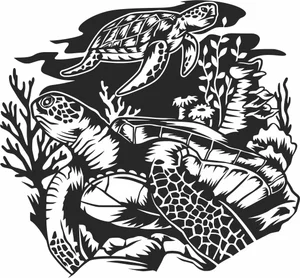
Sea Turtles Underwater Coral Reef Scene Graphic

Santa Claus Village Winter Christmas Snowflakes Forest Silhouette
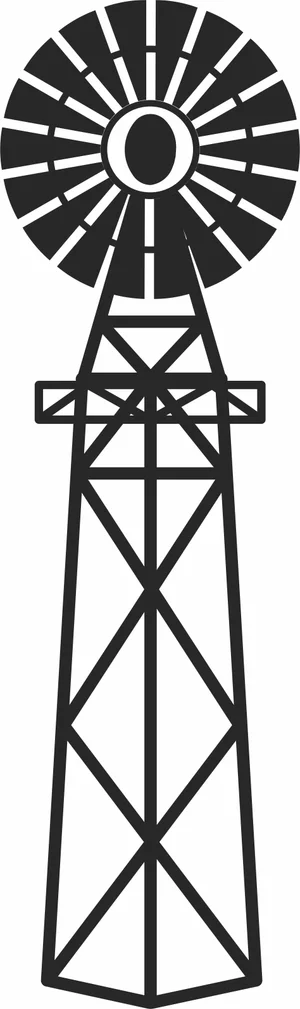
Rustic American Farm Windmill Steel Water Pumping Tower Silhouette

Penguins On Ice Iceberg Arctic Mountain Wildlife Scene
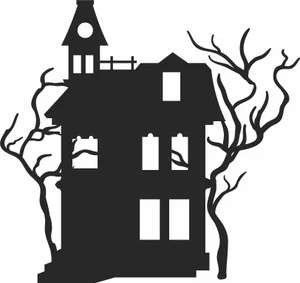
Old Haunted House Tower Balcony Spooky Bare Trees Silhouette
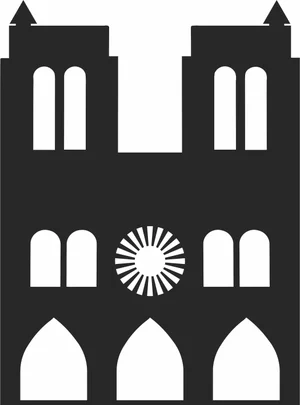
Notre Dame de Paris Gothic Cathedral Architecture Silhouette
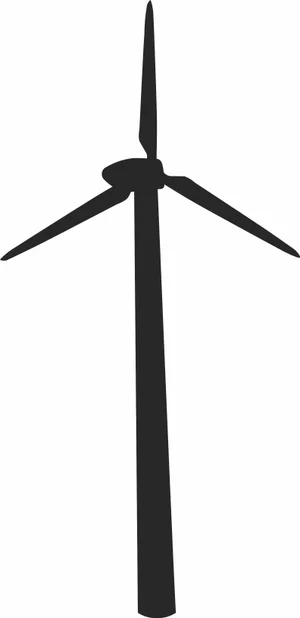
Modern Wind Turbine Renewable Energy Eco Silhouette
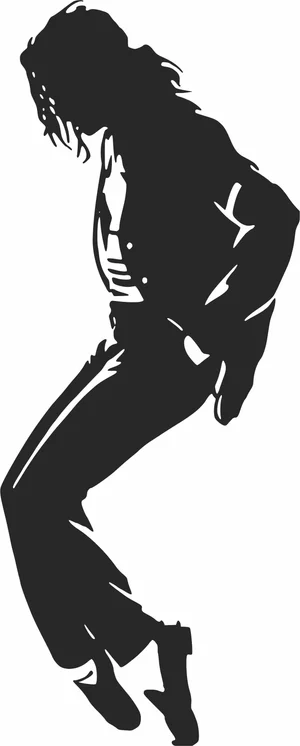
Michael Jackson Dancing On Toe Shoes Pose Silhouette
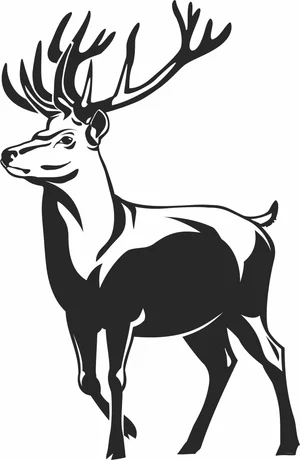
Majestic Red Deer Stag Full Body Large Antlers Vector
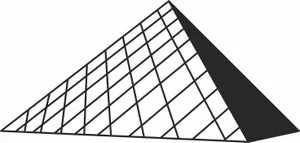
Louvre Pyramid Paris Museum Architecture Silhouette

Kneeling Hunter Aiming Shotgun Rifle Retro Illustration
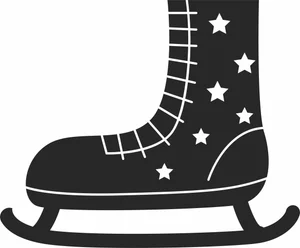
Ice Skate Boot With Laces And Star Pattern Illustration
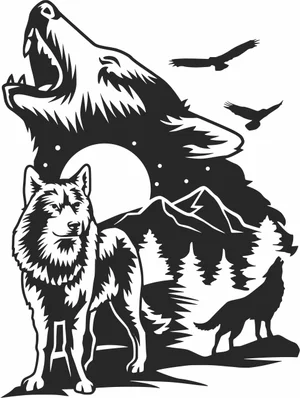
Howling Wolves Full Moon Mountain Forest Wilderness Scene
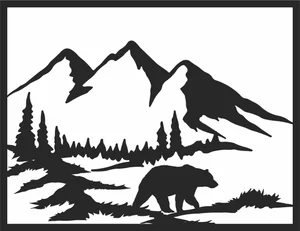
Grizzly Bear Mountain Forest Landscape Frame Scene
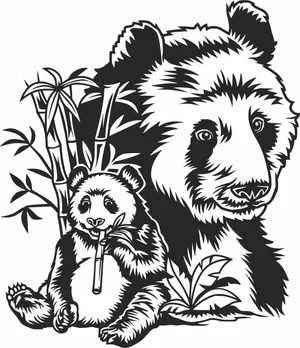
Giant Panda Mother Cub Bamboo Forest Nature Scene
More free laser files
LightBurn File FAQ
What formats does LightBurn support?
SVG, DXF, AI, PDF, PNG, JPG, BMP. SVG and DXF are best for vector cutting. All FreeLaserFile designs are LightBurn-ready.
How do I import SVG into LightBurn?
File > Import or drag and drop SVG/DXF. Set cut vs. engrave layers via color palette. No conversion needed.
Which machines work with LightBurn?
xTool, Ortur, Sculpfun, OMTech, Atomstack, LONGER, K40 (with upgrade), and all GRBL/Ruida DSP machines. Not compatible with Glowforge.
Are the files free for commercial use?
Yes. Free for personal and commercial use. No attribution required.