

Free Laser Cut Files — DXF & SVG for Every Machine
One library of free laser cut files that work on any machine: each design downloads in DXF and SVG with closed, tested paths, so it imports into LightBurn, the Glowforge app or xTool Creative Space and cuts without cleanup. No account, free for personal and commercial use.
Most downloaded free laser cut files
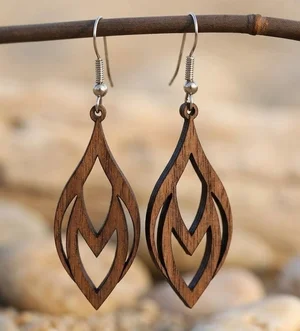
Laser-Cut Wooden Teardrop Earrings
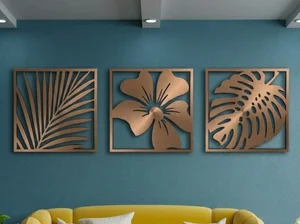
3 Monstera Leaves decor
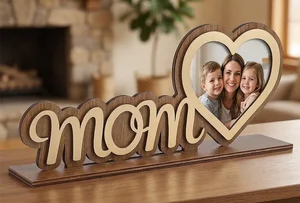
Mother Day Heart Photo Frame Stand
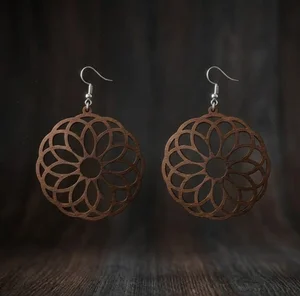
laser-cut wooden mandala earrings
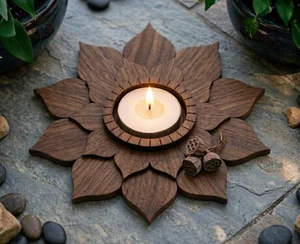
3 Layer Lotus Tealight Candle Holder
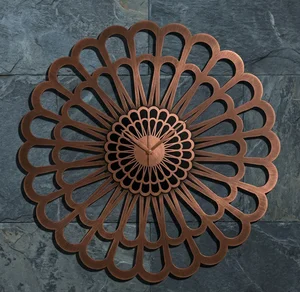
Karlsson Sunflower Large Laser-Cut Floral Decorative Clock

fish wall decor
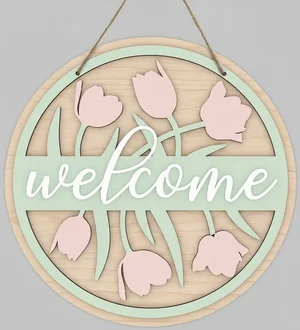
welcome flowers sign
Browse all free laser cut files
Laser-Cut Wooden Teardrop Earrings
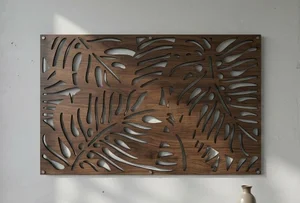
Tropical Monstera Leaf Wall Art

happy spring sign

Hello Summer Floral Round Door Hanger
welcome flowers sign
laser-cut wooden mandala earrings
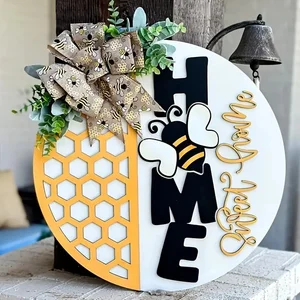
Home Sweet Home Honeycomb Round Door Hanger

Hello Summer Round Door Hanger
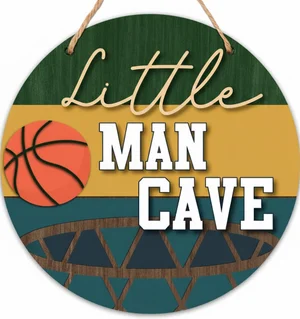
man cave sign
3 Monstera Leaves decor
fish wall decor
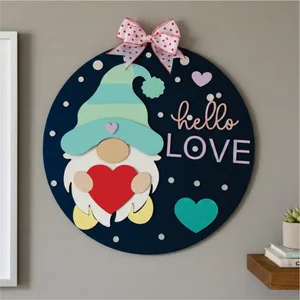
valentines day gnome sign
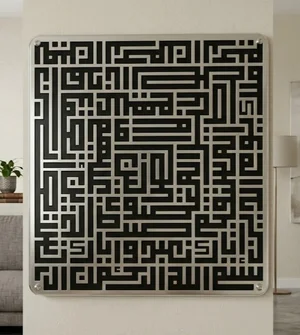
islam sign Al fatiha

retro Flapper Woman Vector Art

We Love You Mommy Cake Topper Mother Day
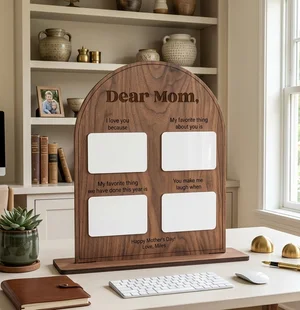
Personalized Arched Mother Day Keepsake Board
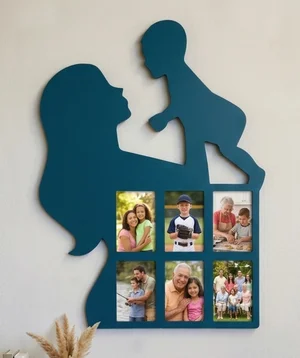
Mother and Child Silhouette Photos Wall Frame

Mother Love Heart Picture Frame Gift
Mother Day Heart Photo Frame Stand
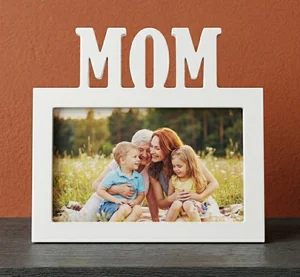
MOM Picture Frame Mother Day Gift
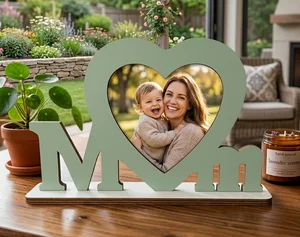
MOM Photo Frame Mother Day Gift
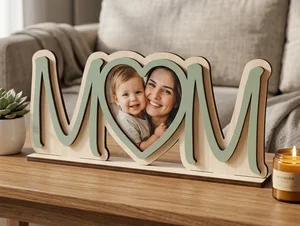
3D Layered Wooden Mom Picture Frame
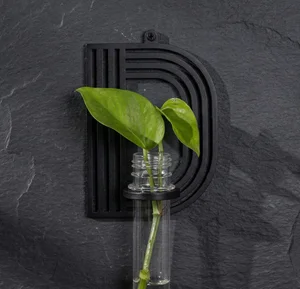
alphabet plant propagation station D
Karlsson Sunflower Large Laser-Cut Floral Decorative Clock
How to use a laser cut file, start to finish
- Pick the format for your machine — SVG for Glowforge and web apps, DXF for LightBurn, CNC and plasma. Every design here offers both.
- Import and check the scale — confirm the file lands in millimetres (or inches) and measure one known dimension.
- Separate the operations — map cut, score and engrave to different layers or colours and set power, speed and passes for each.
- Match settings to your material and thickness — 3 mm birch plywood on a 10 W diode is a different cut from 3 mm acrylic on a 40 W CO2. Start from the maker of your machine’s material library, then test.
- Run a test cut on an offcut — verify the cut goes fully through and the engrave depth is right before running the full sheet.
Choosing material and thickness
Most designs in this library are drawn for 3 mm stock — it is the workhorse thickness for signs, ornaments, boxes and layered art. Thinner than 2 mm and small tabs snap; thicker than 6 mm and cut times climb steeply on a diode laser and edges char more.
Birch plywood cuts fast, takes a clean edge and finishes well with stain or paint, but glue lines vary between sheets so re-test power when you open a new pack. MDF is cheaper and dimensionally consistent but chars darker and will not take stain evenly. Cast acrylic engraves to a frosted white and cuts to a flame-polished edge; never cut PVC or vinyl — it releases chlorine gas that corrodes the machine and is toxic.
Kerf, and why your slots do not fit
Kerf is the width of material the beam vaporises — roughly 0.08–0.15 mm on a focused diode laser and 0.15–0.25 mm on a CO2, depending on power, speed and material. A finger-joint box or a layered puzzle designed at nominal dimensions will therefore come out slightly loose.
If parts fit too loosely, apply a small outward kerf offset (half the measured kerf) to the cut path in LightBurn, or scale mating slots down by 0.1–0.2 mm. If they are too tight, offset the other way. Always confirm kerf with a test cut on the actual material — it is not a fixed number.
Power and pass count shift kerf too, so here is a starting point for 3 mm plywood, MDF and cast acrylic across common machine tiers — pass counts, not fixed speeds, since a machine's true optical output, lens, air assist and even the material batch all move the number. Diode wattage in particular is usually a marketed input rating rather than measured optical output, so two lasers badged the same watts can cut differently. Treat every row as a starting point, not a guarantee, and run a test cut before trusting it.
| Machine tier (cutting 3 mm stock) | Plywood / MDF / cast acrylic — starting point |
|---|---|
| Diode, 5W-class module | Plywood: 2–4 passes at a slow feed rate. MDF: 3–5 passes, charring more per pass than plywood. Acrylic: opaque or cast colours only, several passes at reduced power — clear/transparent acrylic will not cut on a diode, since the beam passes through it instead of being absorbed. |
| Diode, 10W-class module | Plywood: 1–2 passes. MDF: 2–3 passes. Acrylic: opaque/cast colours, 2–3 passes at reduced power; clear acrylic still will not cut. |
| Diode, 20W-class module | Plywood: usually 1 pass. MDF: 1–2 passes. Acrylic: opaque/cast colours, often 1–2 passes; clear/transparent acrylic remains outside what any diode laser can cut, regardless of wattage. |
| CO2, 40W tube | Plywood: 1 pass. MDF: 1 pass, slower than plywood. Acrylic: 1–2 passes — CO2's 10.6 µm wavelength is absorbed well by acrylic, including clear cast, giving the flame-polished edge diodes cannot. |
| CO2, 60W tube | Plywood: 1 pass, comfortably faster. MDF: 1 pass. Acrylic: 1 pass, clean edge on clear or cast. |
| CO2, 100W tube | Plywood: 1 pass with speed to spare. MDF: 1 pass. Acrylic: 1 pass; the extra headroom matters more once you go past 3 mm. |
Fixing files that will not cut cleanly
- Open paths — a shape whose start and end node do not meet. The laser treats it as a line, not a fillable outline, so it will not cut a closed part. In LightBurn, Edit → Select open shapes highlights them; Auto-join enabled paths (tolerance ~0.05 mm) closes small gaps.
- Overlapping or duplicate lines — two segments stacked on the same path make the laser cut or score twice, widening the kerf and scorching the edge. Run "Delete Duplicates" / "Remove overlapping lines" before cutting.
- Wrong scale on DXF import — DXF carries no unit, so a file drawn in millimetres can land as inches (25.4× too big) or vice versa. Set the import unit explicitly and check one known dimension against a ruler.
- Live text instead of paths — if the design uses a font you do not have installed, the text reflows or disappears. Files here ship with text already converted to outlines; if you edit text, convert it to a path before cutting.
- Stray nodes and tiny artefacts — single points or sub-millimetre shapes left over from tracing. They register as pierce points and leave burn marks. Delete anything smaller than your beam diameter.
How this library is tested
Every design is added by hand through the site's own admin tools rather than accepted as an open public upload, so a person decides what gets published — nothing arrives here automatically. The upload step itself enforces a server-side whitelist on file extension and MIME type (DXF, SVG, AI, CDR, EPS, PDF) and a 50 MB per-file size cap, which blocks the wrong file type or a corrupted upload before it is stored. Bulk imports go through a ZIP extraction step that is hardened against path-traversal ("zip slip") attacks.
What is not automated: there is no code here that opens a file and checks its vector geometry for open paths, duplicate lines or the wrong import scale. That is a manual, by-eye step today, not a machine-verified one — which is why the import-error checklist above exists and is worth running yourself, especially before an unattended cut.
What to check before you trust a free laser-cut file site
Not every "free files" site works the same way, and it is worth knowing where a source is strong and where it falls short before you download from it. Here is an honest look at where FreeLaserFile stands today, gaps included.
| What to check | Where FreeLaserFile stands |
|---|---|
| Account or email required? | No — every design downloads directly with no sign-up. Some sites gate the file behind an email capture or a free account first. |
| Formats per design | DXF and SVG together on every design, AI or CDR on many, so you are not stuck converting one format into another before you can cut. |
| Commercial license | Free for personal and commercial use with no attribution, stated the same way on every design. Always check the license on other sites — it can vary file to file. |
| Per-machine, per-material cut settings | A starting-point table by machine power tier (diode 5–20W, CO2 40–100W) and material is published in the kerf guide above — pass counts, not exact speeds, always to confirm with a test cut. What is still missing is a user-submitted, per-machine settings library the way some larger community sites offer. |
| Library size | A curated, smaller library rather than tens of thousands of files of mixed, unverified quality — a trade-off, not a pure advantage, if breadth is what you need. |
Laser cut files by machine, material and category
Free Laser Cut Files — FAQ
Are the laser cut files on FreeLaserFile really free?
Yes — every file is free to download with no account, no email and no premium tier. Designs are licensed for personal and commercial use with no attribution required; you may sell what you cut but not the digital file itself.
What file formats do the downloads come in?
DXF and SVG on every design, and AI or CDR on many. DXF suits LightBurn, CNC routers and plasma tables; SVG suits Glowforge, xTool Creative Space and Cricut.
Will these files work with my Glowforge or xTool?
Yes. Glowforge users import the SVG at app.glowforge.com. xTool users open the SVG or DXF in xTool Creative Space or LightBurn. Ortur, Sculpfun, OMTech, Atomstack and LaserPecker users work from LightBurn. Every design is drawn with closed paths so it imports without repair.
What laser power do I need to cut these?
Any laser can cut these files — the design does not set the power, your material does. A 5–10 W diode cuts 3 mm plywood in a few passes; a 40 W+ CO2 cuts it in one. Start from your machine maker’s material settings and adjust with a test cut.
How do I stop the edges from scorching?
Cut faster at higher power rather than slow at low power, use air assist, mask the surface with painter’s tape on plywood, and make sure the file has no duplicate lines causing a second pass. Light sanding or a wipe with a damp cloth removes residual soot after cutting.