

Free LightBurn Files – SVG & DXF Laser Cut Designs
Download free SVG and DXF files ready for LightBurn laser software. All designs import directly into LightBurn — just load, set speed and power, and cut. No registration required. Free for commercial use.
Compatible machines (with LightBurn)
LightBurn tip: Import SVG or DXF via File > Import or drag & drop. Use the layer palette to separate cut lines (red) from engraving (black) for multi-pass.
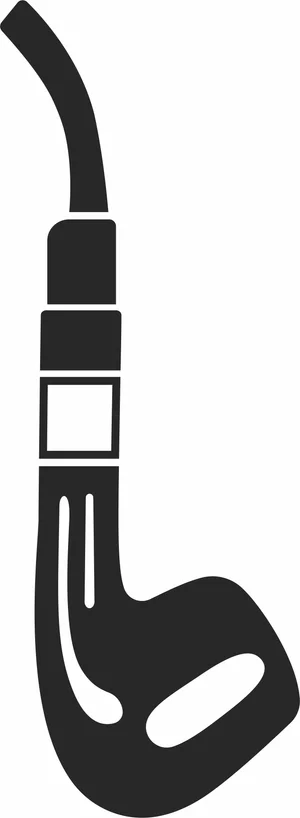
Retro Smoking Pipe Silhouette
Art & Decor6 DL

Woman Face with Floral Crown Continuous Line Art
Art & Decor3 DL
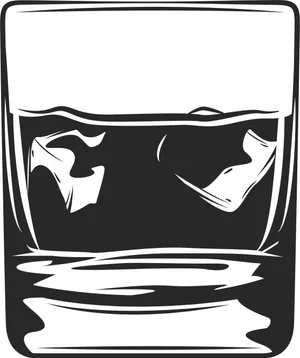
Whiskey Glass with Ice Cubes Illustration
Art & Decor1 DL
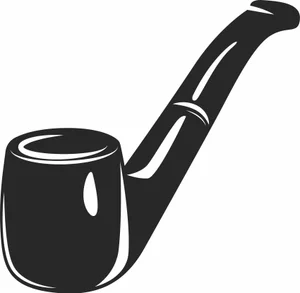
Vintage Tobacco Smoking Pipe Illustration
Art & Decor2 DL
Vintage Spinning Reels Fishing Badge
Animals2 DL
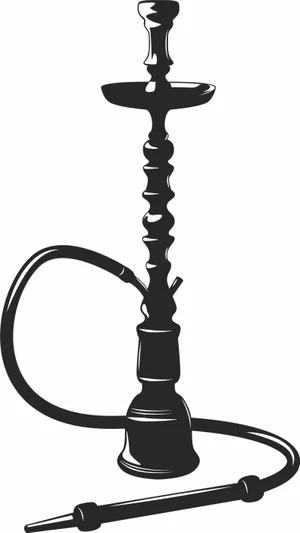
Traditional Hookah Shisha Illustration
Art & Decor5 DL
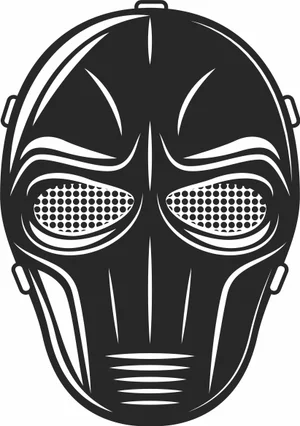
Tactical Paintball Protective Mask Illustration
Art & Decor5 DL
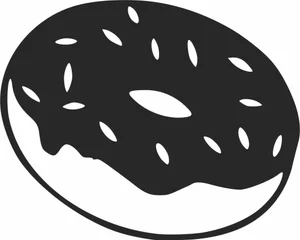
Sweet Glazed Donut with Sprinkles Illustration
Art & Decor3 DL
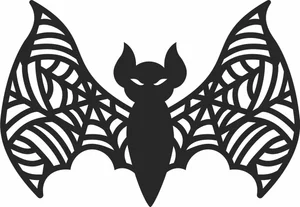
Spooky Bat with Spiderweb Wings
Art & Decor9 DL
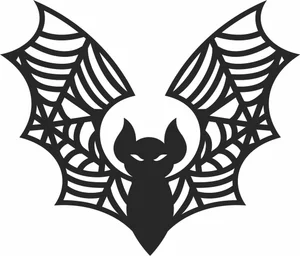
Spooky Bat with Raised Spiderweb Wings
Art & Decor7 DL
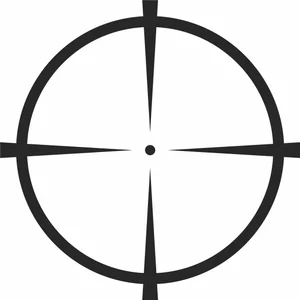
Sniper Crosshair Aim Target Illustration
Art & Decor10 DL
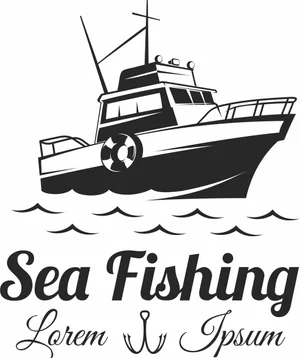
Sea Fishing Vintage Boat Emblem
Animals4 DL

Scary Jack o Lantern Pumpkin
Vehicles6 DL

Private Jet Airplane Silhouette Illustration
Art & Decor9 DL
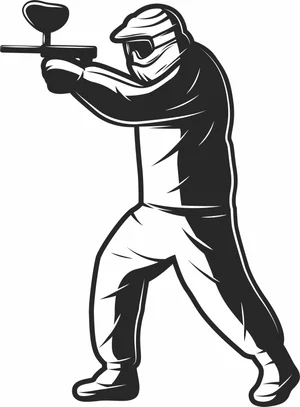
Paintball Player Shooting Marker Illustration
Art & Decor2 DL
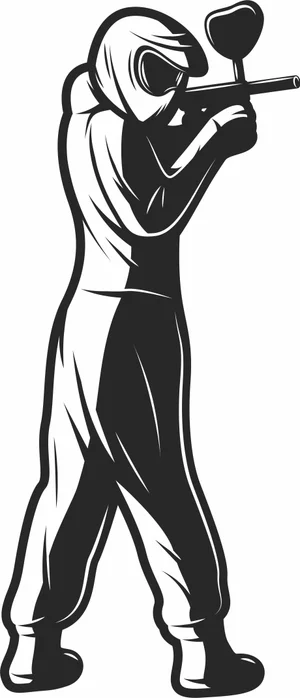
Paintball Player Aiming Marker Illustration
Art & Decor2 DL
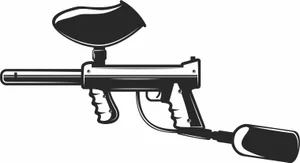
Paintball Marker Gun Illustration
Art & Decor2 DL
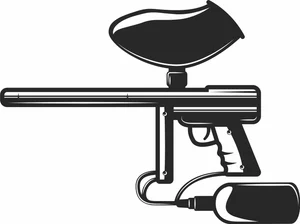
Paintball Gun Marker with Long Barrel Illustration
Art & Decor2 DL
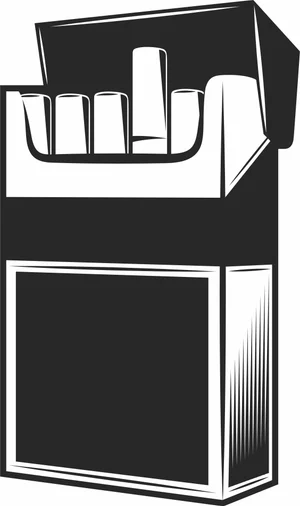
Open Cigarette Pack Illustration
Art & Decor2 DL

Mystical Snake and Crescent Moon
Art & Decor2 DL
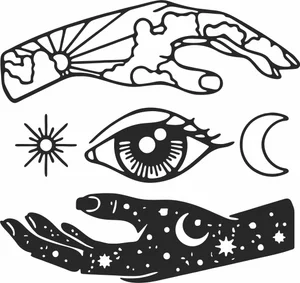
Mystical Hands and Third Eye Elements
Art & Decor15 DL
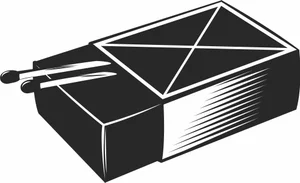
Matchbox with Matches Illustration
Art & Decor3 DL
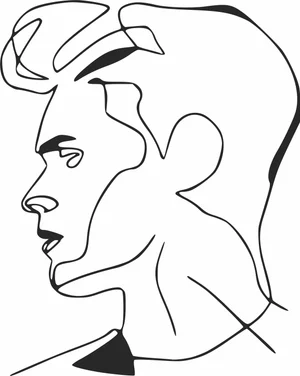
Man Profile Portrait Continuous Line Art
Art & Decor4 DL
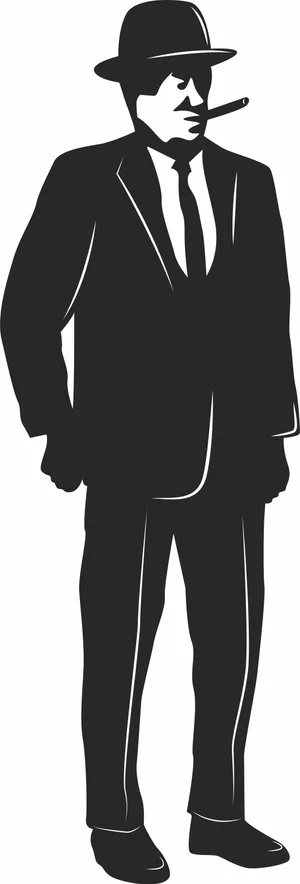
Mafia Mobster Gentleman in Suit Illustration
Art & Decor2 DL
More free laser files
LightBurn File FAQ
What formats does LightBurn support?
SVG, DXF, AI, PDF, PNG, JPG, BMP. SVG and DXF are best for vector cutting. All FreeLaserFile designs are LightBurn-ready.
How do I import SVG into LightBurn?
File > Import or drag and drop SVG/DXF. Set cut vs. engrave layers via color palette. No conversion needed.
Which machines work with LightBurn?
xTool, Ortur, Sculpfun, OMTech, Atomstack, LONGER, K40 (with upgrade), and all GRBL/Ruida DSP machines. Not compatible with Glowforge.
Are the files free for commercial use?
Yes. Free for personal and commercial use. No attribution required.