

Free LightBurn Files – SVG & DXF Laser Cut Designs
Download free SVG and DXF files ready for LightBurn laser software. All designs import directly into LightBurn — just load, set speed and power, and cut. No registration required. Free for commercial use.
Compatible machines (with LightBurn)
LightBurn tip: Import SVG or DXF via File > Import or drag & drop. Use the layer palette to separate cut lines (red) from engraving (black) for multi-pass.
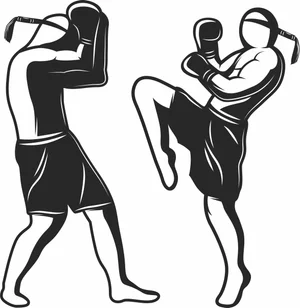
Muay Thai Fighters Sparring Match Sign
Art & Decor2 DL

Muay Thai Fighter High Kick Silhouette Sign
Art & Decor3 DL

Mountain Lake Boat Landscape Sign
Art & Decor11 DL

Mountain Cable Car Landscape Sign
Art & Decor2 DL

Merry Christmas Snowflake Sign
Art & Decor4 DL
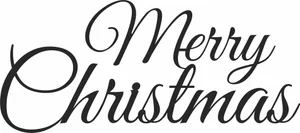
Merry Christmas Script Cursive Sign
Art & Decor2 DL
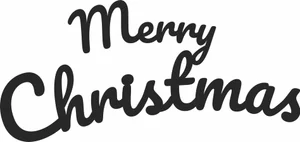
Merry Christmas Modern Script Sign
Art & Decor3 DL

Merry Christmas Holly Sign
Art & Decor4 DL
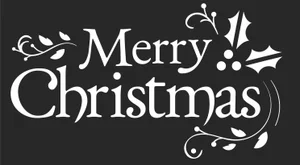
Merry Christmas Flourish Holly Sign
Art & Decor3 DL

Merry Christmas Elegant Sign
Art & Decor3 DL
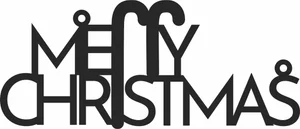
Merry Christmas Candy Cane Sign
Art & Decor1 DL
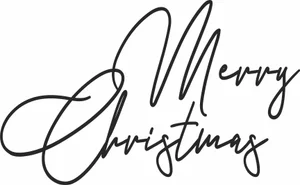
Merry Christmas Calligraphy Lettering Sign
Art & Decor2 DL

Merry Christmas Bold Script Sign
Art & Decor1 DL

Merry Christmas Bauble Ornament
Art & Decor22 DL

Heron Willow Tree Arch Sign
Flowers & Nature5 DL
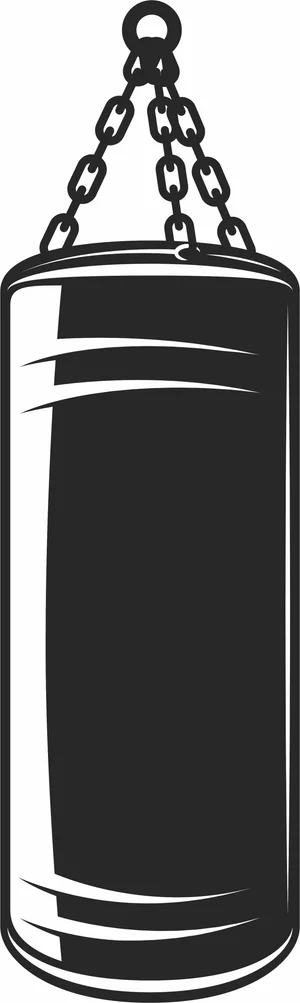
Heavy Punching Bag Boxing Training Sign
Art & Decor2 DL
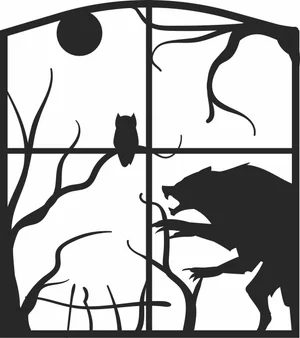
Halloween Werewolf Owl Window Sign
Art & Decor3 DL
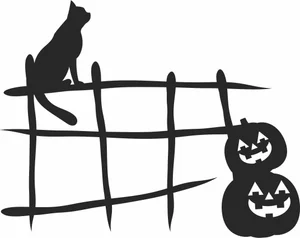
Halloween Watching Cat Fence Sign
Art & Decor2 DL

Halloween Twin Candle Candelabra Sign
Art & Decor2 DL
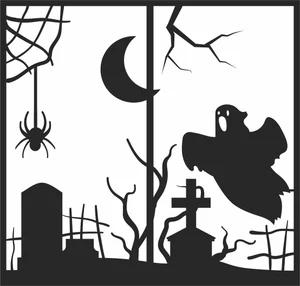
Halloween Spooky Graveyard Ghost Sign
Art & Decor6 DL
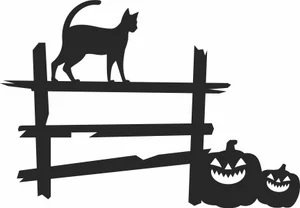
Halloween Spooky Cat Fence Sign
Art & Decor3 DL
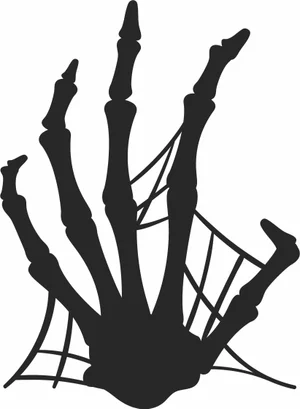
Halloween Skeleton Hand Spiderweb Sign
Art & Decor7 DL

Halloween Skeleton Hand Spider Sign
Art & Decor2 DL
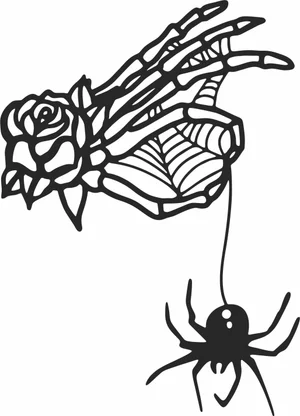
Halloween Skeleton Hand Rose Spider Sign
Art & Decor2 DL
More free laser files
LightBurn File FAQ
What formats does LightBurn support?
SVG, DXF, AI, PDF, PNG, JPG, BMP. SVG and DXF are best for vector cutting. All FreeLaserFile designs are LightBurn-ready.
How do I import SVG into LightBurn?
File > Import or drag and drop SVG/DXF. Set cut vs. engrave layers via color palette. No conversion needed.
Which machines work with LightBurn?
xTool, Ortur, Sculpfun, OMTech, Atomstack, LONGER, K40 (with upgrade), and all GRBL/Ruida DSP machines. Not compatible with Glowforge.
Are the files free for commercial use?
Yes. Free for personal and commercial use. No attribution required.