

Free LightBurn Files – SVG & DXF Laser Cut Designs
Download free SVG and DXF files ready for LightBurn laser software. All designs import directly into LightBurn — just load, set speed and power, and cut. No registration required. Free for commercial use.
Compatible machines (with LightBurn)
Machines these files work with
Some links on this page are affiliate links. If you buy through them, we may earn a commission at no extra cost to you. It does not influence which machines we list — the files on this site stay free either way.
- xToolView
Diode and infrared machines aimed at hobbyists and small shops.
- OMTechView
CO2 laser cutters with larger beds, for thicker material and production work.
- AtomstackView
Entry-level diode engravers at the low end of the price range.
- Creality FalconView
Diode engravers from a established 3D-printing manufacturer.

Ornate Floral Crescent Moon Vector Art
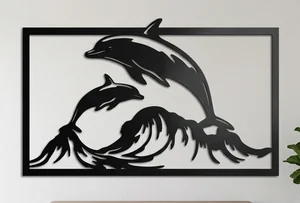
Jumping Dolphins Ocean Waves Silhouette Vector Art

Harry Potter Draco Malfoy Arm Wrestling Vector Art
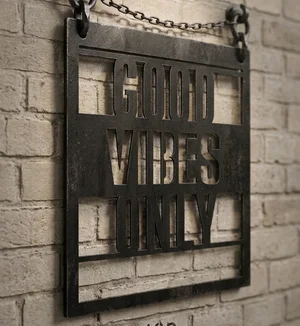
Good Vibes Only Typography Wall Decor Vector

Frida Kahlo Abstract Line Art Portrait Vector
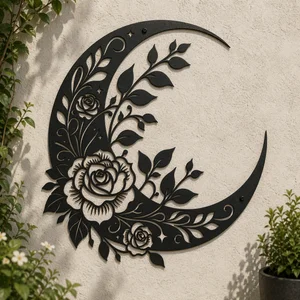
Floral Crescent Moon Rose Silhouette Vector Art

Fleur de lis Ornate Heraldic Crest Vector Art
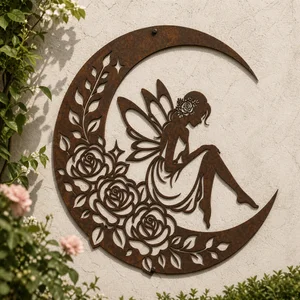
Fairy on Floral Crescent Moon Silhouette Vector Art
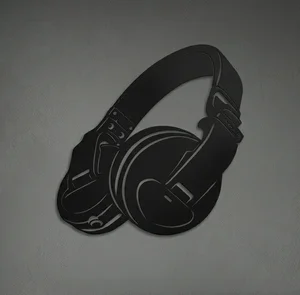
DJ Headphones Silhouette Vector Art

Cartoon Kangaroo Line Art Coloring Page
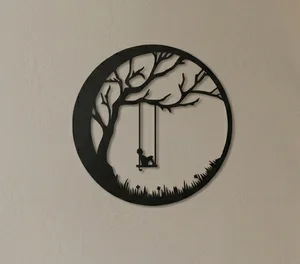
Boy on Tree Swing Moon Silhouette Vector Art
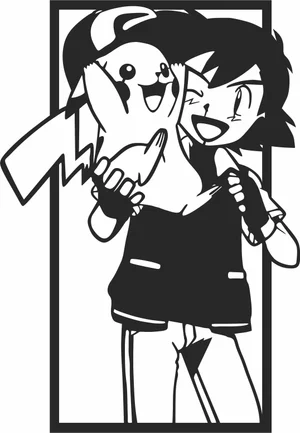
Ash and Pikachu Silhouette Vector Art

Airport Tower Airplane Vector Icon
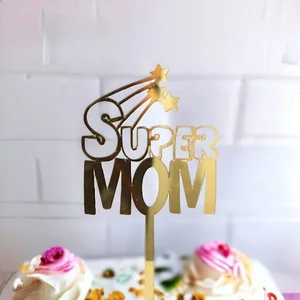
Super Mom Cake Topper Mother Day Decoration
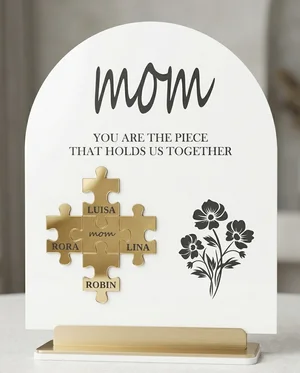
Mom Piece That Holds Us Together Puzzle Plaque
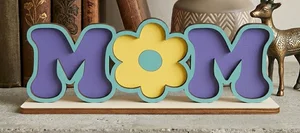
Floral Layered Wooden Mom Stand
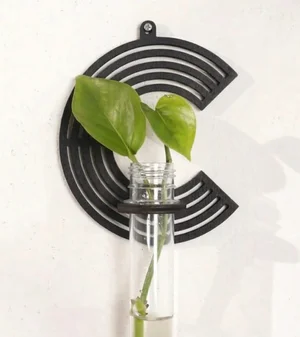
alphabet plant propagation station C
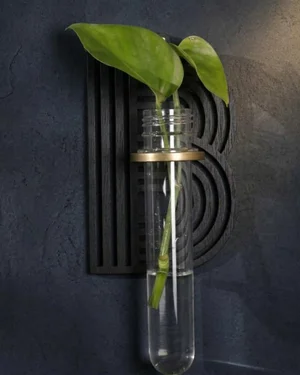
alphabet plant propagation station B
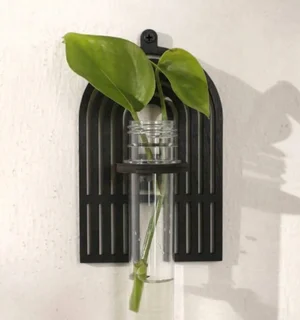
alphabet plant propagation station A
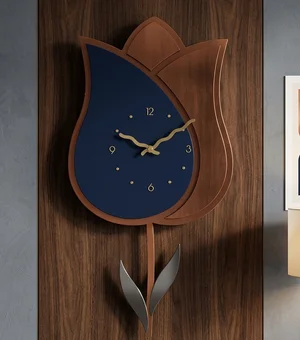
Tulip-Shaped Wall Clock Floral Home Decor
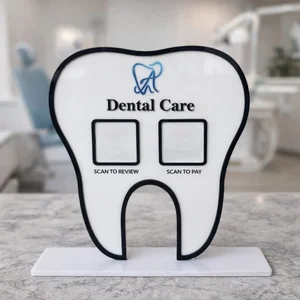
Tooth-Shaped QR Code Stand for Dental
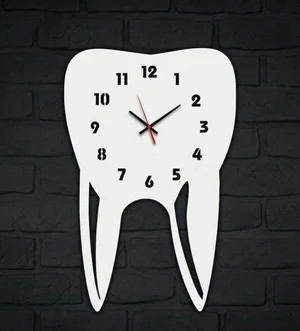
Tooth-Shaped Wall Clock Dentist
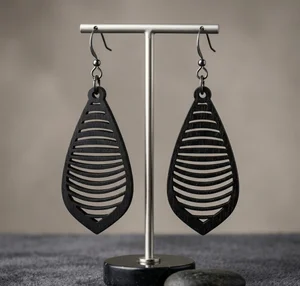
Teardrop Dangle Earrings with Horizontal Slatted Geometric Design
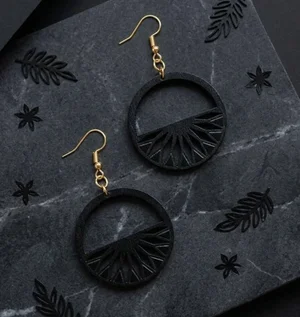
Samira Sun Ray Dangle Earrings
More free laser files
LightBurn File FAQ
What formats does LightBurn support?
SVG, DXF, AI, PDF, PNG, JPG, BMP. SVG and DXF are best for vector cutting. All FreeLaserFile designs are LightBurn-ready.
How do I import SVG into LightBurn?
File > Import or drag and drop SVG/DXF. Set cut vs. engrave layers via color palette. No conversion needed.
Which machines work with LightBurn?
xTool, Ortur, Sculpfun, OMTech, Atomstack, LONGER, K40 (with upgrade), and all GRBL/Ruida DSP machines. Not compatible with Glowforge.
Are the files free for commercial use?
Yes. Free for personal and commercial use. No attribution required.