

Free Glowforge Files – SVG & DXF Laser Cut Designs
Download free SVG and DXF files for your Glowforge laser cutter. SVG files upload directly to app.glowforge.com and are ready to cut — DXF files need a quick SVG conversion first (see below). No registration required. Free for commercial use.
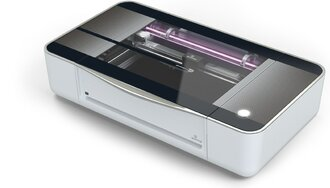
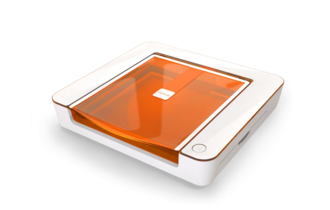
Machines these files work with
Some links on this page are affiliate links. If you buy through them, we may earn a commission at no extra cost to you. It does not influence which machines we list — the files on this site stay free either way.
- GlowforgeView
Closed-ecosystem CO2 machines with the simplest setup.
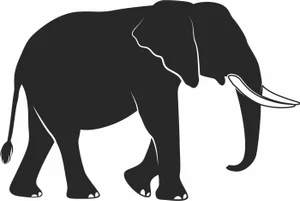
Elephant Silhouette Vector Illustration
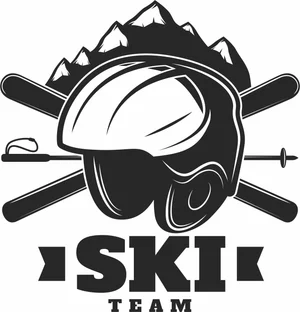
Downhill Skiing clipart
Dog Paws hearts clipart
Dog Paw monogram clipart
Dog Paw hearts clipart
Dog Paw clipart
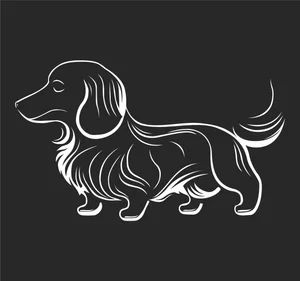
Dachshund Silhouette dog
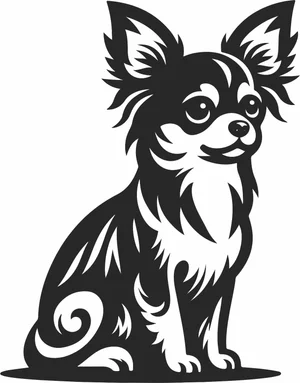
Chihuahua Silhouette
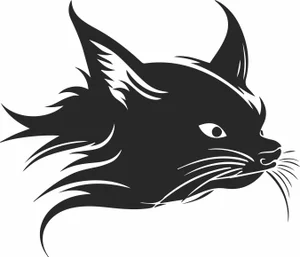
Cat face Animal Silhouette
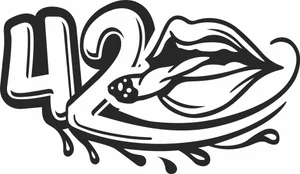
Cannabis 420 Lips Design
Cannabis
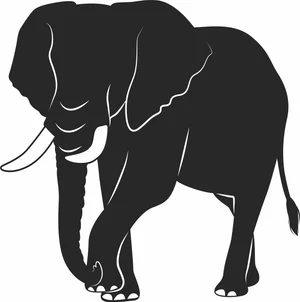
Black and White Elephant Graphic
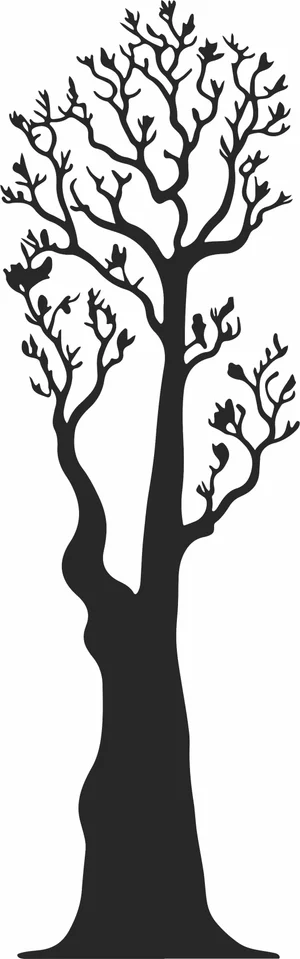
Bare Tree Silhouette
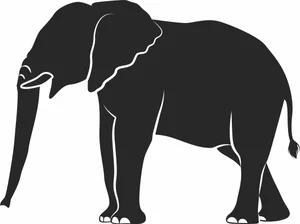
African Elephant Clipart

You and me love sign

You are my favourite heart sign

Zodiac horoscop wall clock

Yingyang life and death

Yoga wall clock

Xoxo love sign

Wrong house asshole

Wrong house gun

floral woman face

Woman art
More free laser files
Glowforge file compatibility: SVG vs. DXF, Proofgrade vs. custom settings
Glowforge only imports SVG, PDF, PNG, and JPG
The Glowforge app (app.glowforge.com) does not accept DXF files directly — DXF isn't one of its supported import formats. If you download a DXF file from this site for a Glowforge, open it in a free vector editor like Inkscape and use File → Save As → Plain SVG (or Illustrator's Export As → SVG) before uploading. Any SVG file on this site can be uploaded to the Glowforge app as-is.
Proofgrade materials vs. everything else
Glowforge's own Proofgrade materials have a QR-coded backing sticker that the machine's camera reads automatically, loading a pre-calibrated speed, power, and focus setting for that exact material and thickness. Any other material — plywood, acrylic, or leather bought elsewhere, including material cut with the free designs on this site — is "non-Proofgrade": you enter your own speed/power/focus settings manually in the app's material step, and Glowforge doesn't guarantee the cut since it hasn't calibrated for that specific batch. Treat any settings you find (including the starting-point table on our free laser cut files hub) as a starting point for a test cut, not a guarantee.
Glowforge File FAQ
What file formats work with Glowforge?
Glowforge supports SVG, PDF, PNG, and JPG. SVG is the recommended format — it supports both cut lines and engraving in one file. All SVG files here are Glowforge-ready.
How do I upload a file to Glowforge?
Download the SVG file, open app.glowforge.com, click “+” to create a new design, and upload your file. It will appear ready to cut or engrave immediately.
Are these files free for commercial use?
Yes. All files on FreeLaserFile are free for both personal and commercial use. No attribution required.